Android voice typing
How to dictate texts, emails, and notes on Android without losing the draft
Voice typing works best when it gives you a pause between speaking and sending. Record the thought, let speech-to-text create an editable draft, review it, then copy, share, or insert the words where they belong.
Use voice typing for the parts that are hard to type
On Android, dictation is especially helpful when your hands are busy, a sentence is longer than a quick thumb-typed reply, or you want to capture an idea before opening a laptop. It can be useful for a text message, a work email outline, a shopping list, a personal reminder, meeting follow-up, or a rough note you will revise later.
Do not try to dictate an entire finished document in one breath. Treat speech-to-text as a faster first draft. You can speak naturally, then use editing to make the result clear enough to send.
Pick one of three Android dictation paths
1. Record a private voice note first
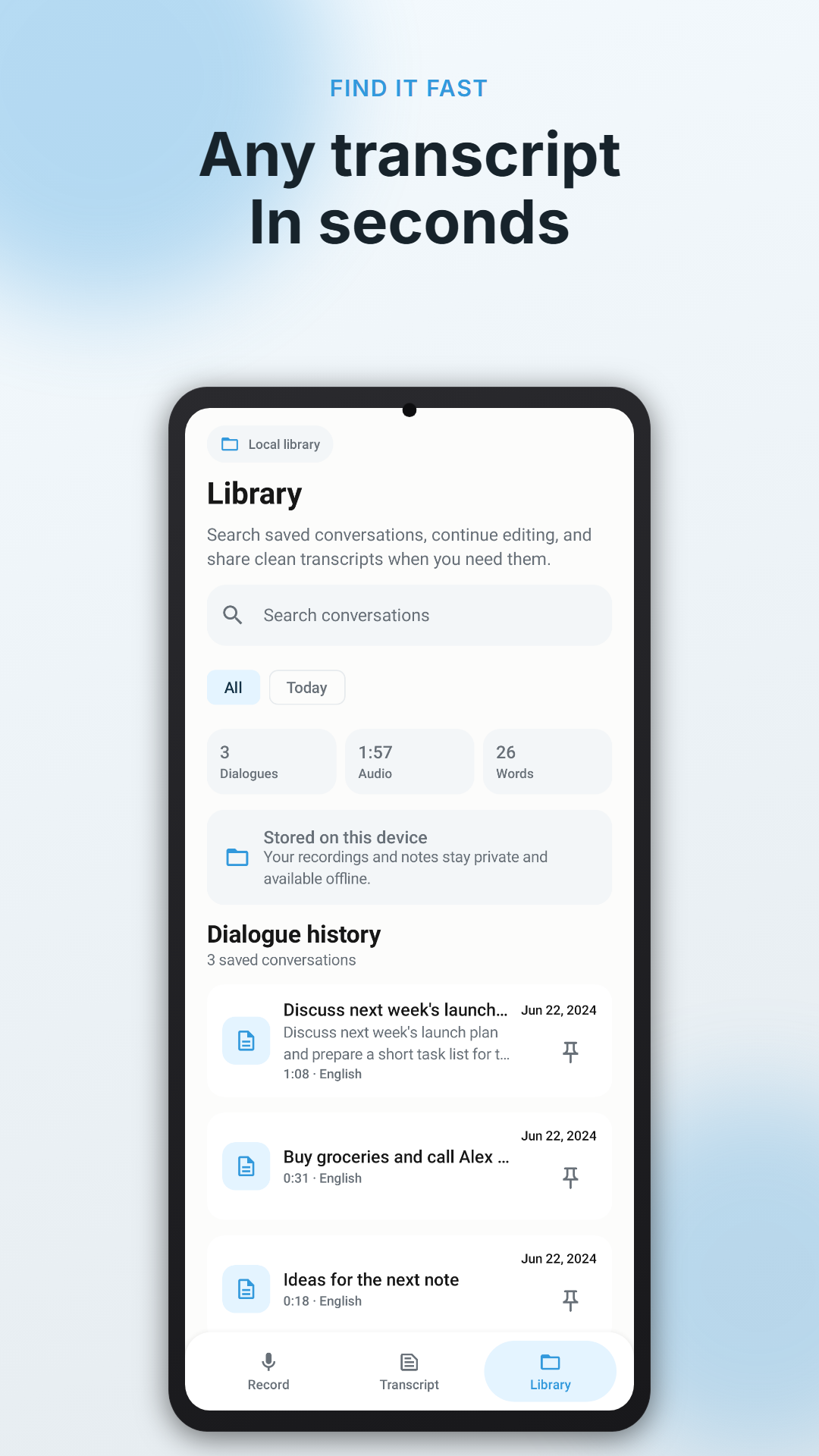
This is the calmest option for an idea that needs review. In Voice Scribe, tap Record, speak, stop, and edit the local transcript. You can copy or share the finished text when it is ready. Saved transcripts can be searched, pinned, and reopened, so a half-finished draft does not have to disappear into a message field.
2. Start from Quick Settings
For quick capture, add Voice Scribe to Android Quick Settings. You can start recording without hunting through the app, wait for the offline transcript, then paste the result where you need it. This is useful for personal reminders and brief spoken drafts; it is not a reason to handle a phone while driving.
3. Use optional text insertion
When you need the finished dictation in a chat, email, notes app, or another editable field, Voice Scribe can insert it after a separate consent flow. This uses Android AccessibilityService, reads the active editable field’s text plus the cursor position or selection, skips password fields, and replaces only the selected text with your completed transcript. The feature is optional, and you can keep using the app without it.
Speak in small, sendable blocks
A short message is easier to recognize and edit than a wandering monologue. Start with the recipient or purpose, give the key point, and end with the requested action. For example:
- Text message: “Text Maya: I’ll be there around six. Can you send the address again?”
- Email draft: “Email project team: the release review is moved to Thursday. Please add your blockers before noon Wednesday.”
- Note: “Grocery list: coffee, oats, apples, and dishwasher tablets. Check the pantry first.”
- Follow-up: “Meeting follow-up: confirm the vendor quote, assign the onboarding owner, and schedule a review for next week.”
You can say punctuation when it helps, but do not let it slow you down. It is usually faster to correct one line on screen than to restart a spoken sentence repeatedly.
Review before copying, sharing, or inserting
Before the text goes into another app, check that the transcript means what you intended. Look closely at contact names, dates, times, quantities, URLs, and product names. Then verify the destination: an active text field can be the wrong chat or draft if you switched apps quickly.
Voice Scribe includes Copy and Share actions for a deliberate handoff. If you use text insertion, first test it in an empty note. Do not enable accessibility features casually; review the disclosure and keep the feature off when you do not need it.
Keep spoken drafts easy to find
Give a saved transcript a purpose in the first sentence. A searchable local library is more useful when each note contains a distinctive word: “insurance call,” “Sunday meal plan,” or “client onboarding draft” is easier to find than “idea.” Pin the few notes that remain active, and delete temporary recordings or completed drafts when they no longer help.
Voice Scribe stores recordings and notes locally, and temporary recordings are deleted after transcription. That gives you control over the library, but it also means you should keep a simple cleanup habit.
Set expectations for accuracy
The included offline model is a private starting point. For better multilingual accuracy, Voice Scribe offers optional transcription models that can detect 99 languages automatically. Larger models may need more storage and phone memory, so download them on Wi‑Fi and test the language you actually speak. For important conversations or any high-stakes text, review the transcript against the original source before you send it.
Turn spoken drafts into text you can use
Voice Scribe lets you record a note, transcribe it offline, edit the wording, and then save, pin, search, copy, share, or dictate the finished text into another Android app.