Android speech to text
Private speech-to-text on Android: what to look for before you record
A good voice-to-text app should leave you with editable words, not another audio file to replay. The useful question is not only “does it transcribe?” but where the speech is processed, how you can correct it, and what happens after you stop recording.
Start with the job you actually need done
“Speech to text” covers several different Android workflows. You may need a fast voice note while walking between appointments, private voice typing for a text message, a spoken draft for an email, or a searchable transcript you can return to later. These are related, but the best setup for one is not always the best setup for another.
- Quick capture: record a thought before it disappears, then turn it into a note you can edit.
- Voice typing: dictate a finished sentence into a chat, email, task, or notes app.
- Transcript library: save, search, pin, copy, share, and continue revising spoken drafts.
- Multilingual speech recognition: choose an optional model when you need broader language support or higher accuracy.
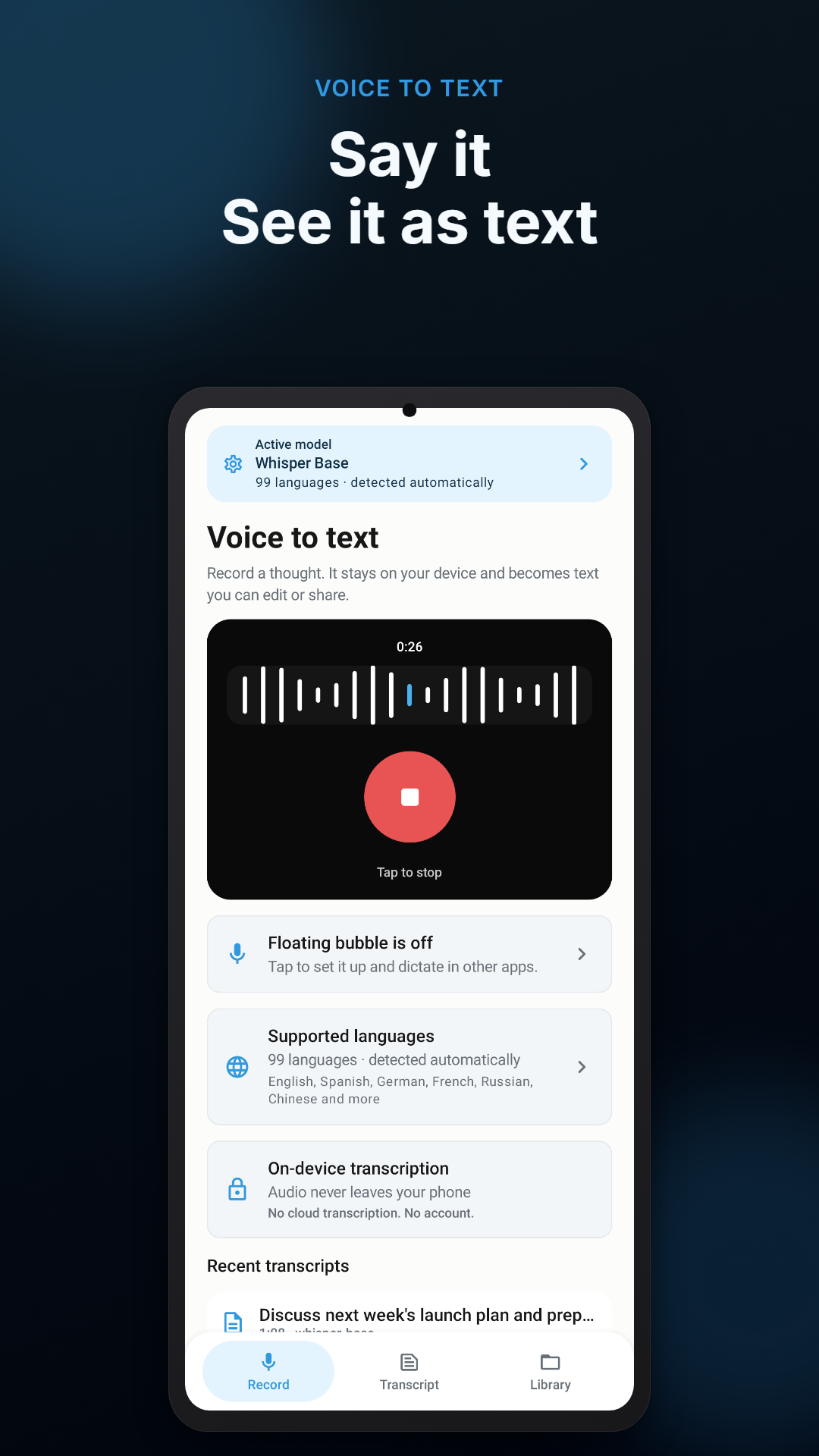
Voice Scribe is designed around all four. It turns speech into editable text directly on an Android phone, then keeps the result in a local library until you delete it.
Understand the privacy promise
With cloud transcription, recorded speech is sent to a remote service for recognition. With on-device speech-to-text, a transcription model runs on the phone instead. Voice Scribe processes microphone audio on-device and does not upload it to a cloud transcription service. Temporary recordings are deleted after transcription, while saved transcripts remain in the local library until you remove them.
That does not mean every connected activity disappears: Google Play, app updates, optional model downloads, purchases, and technical diagnostics can use a network connection. It means the core act of turning your voice into text does not require sending the recording to a cloud transcription provider.
Look for an editable result, not just a transcript
Speech is full of restarts, filler words, and sentences that made sense while you were talking but need a little shape on screen. A practical voice-to-text workflow lets you edit before you copy or share. Voice Scribe can clean up spoken wording with on-device rules, and you can still make the final decision about tone, punctuation, and meaning.
For anything that matters, make a short review routine: check names, dates, dollar amounts, addresses, and technical terms first. Then scan for missing negations or words that sound alike. Speech recognition is useful, but it can still make a confident-looking mistake.
Models, languages, and phone resources
Voice Scribe includes a Tiny offline transcription model for a quick private start. Optional Base and Medium models broaden support with automatic language detection across 99 languages; Turbo targets stronger offline transcription on compatible phones with at least 6 GB of RAM. More capable models typically need more storage, a longer download, and more processing power.
Use Wi‑Fi for larger downloads when possible. The app waits for Wi‑Fi unless you separately allow mobile data for that specific download. If you only use one language and need a lightweight note-taking routine, the included model may be the simpler choice. If a multilingual transcript is important, test the optional model with your own voice and usual environment before relying on it.
Choose a safe way to dictate into other apps
Voice typing is most useful when the text reaches the app where you are already working. Voice Scribe offers optional text insertion after a separate Android AccessibilityService consent step. When you finish dictating, it can insert completed local dictation into the active editable text field you selected in another app. Password fields are excluded.
Before enabling any tool that works across apps, read the disclosure, test it in a blank note, and confirm where the cursor is before inserting text. Voice Scribe does not store, send, or share the content of the active field used for text insertion; the feature is optional and can be turned off in Android Settings.
A useful first test for any Android voice-to-text app
- Record a 20-second note that includes a name, a date, and a number.
- Read the transcript and correct it before copying or sharing it.
- Search for one distinctive word after saving the note.
- Try one short dictation into a non-sensitive text field if you enable text insertion.
- Repeat in the environment where you will really use it, such as a home office or a quiet parked car.
Do not operate a phone while driving, and do not record people where consent, privacy, workplace rules, or local law makes it inappropriate.
Keep your next spoken idea editable
Voice Scribe combines private offline speech-to-text, local transcript search, optional voice typing, and an on-device editing workflow for Android.